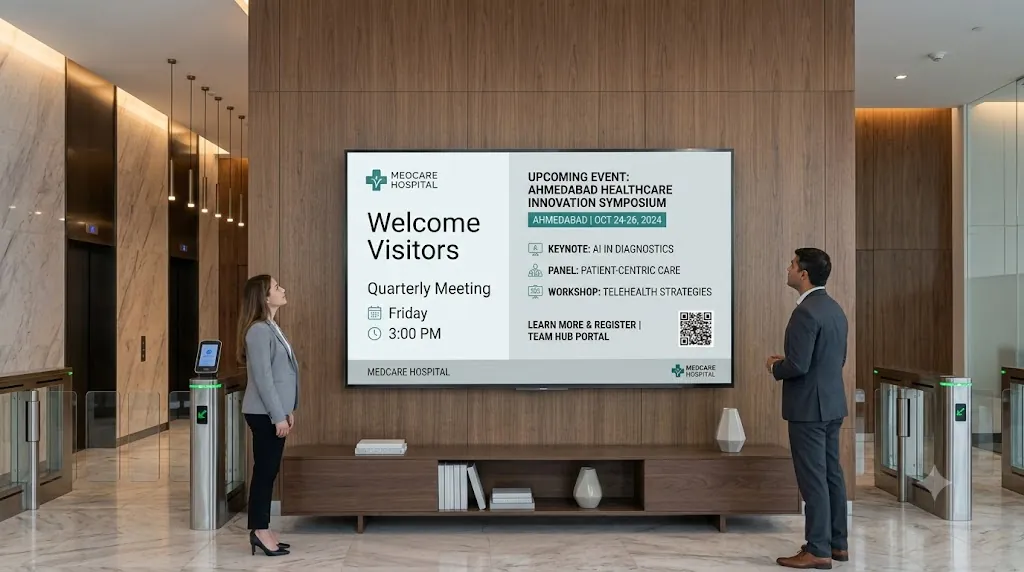
Running offices in multiple cities or countries means the same announcement needs to reach every screen — from the London lobby to the Sydney breakroom — simultaneously. Printed posters are weeks too slow. Email chains get ignored. Digital screens managed from a single phone app are the answer.
Loco Digital Signage gives corporate communications teams a single phone-based control panel to push branded content across all regional office TVs — instantly. No servers, no IT setup, no media players to mount. Works on Fire TV Stick, Apple TV, Android TV, and Google TV that you already own.
Connecting Multiple Office Branches?
Install Loco on your office Smart TVs and mobile phone. Connect in seconds via QR code and broadcast company updates live from anywhere.
Start Free Trial — No Credit Card NeededWhy Multi-Office Businesses Trust Loco Digital Signage
- Remote Publishing from Anywhere: Update screens at your London HQ or a Mumbai branch simultaneously — directly from your phone, no VPN or IT involvement needed.
- Show URL for Live Company Portals: Use Show URL on Screen to display your live intranet, HR portal, employee directory, or real-time company dashboard on any office TV.
- Large Text for Urgent Alerts: Push bold, full-screen text announcements to all office TVs instantly — perfect for shift changes, emergency notices, or time-sensitive updates.
- PDF Policy & Compliance Display: Upload PDF documents directly to branch screens — compliance notices, updated SOPs, or HR policies displayed without printing costs.
- 500+ Canva-Ready Templates: Design branded announcements, welcome boards, and milestone posts for every office using the included Canva templates.
- Content Scheduling: Schedule content to auto-display on Monday mornings, during lunch hours, or before end-of-day — set it once and forget it.
- Local LAN Mode for Secure Offices: Transfer content over local office WiFi without sending data over external internet — ideal for security-restricted corporate subnets.
- Zero Internet Interruption Risk: Media stores locally on Apple TV, Android TV, Fire TV, or Google TV so screens stay active 24/7 even during ISP outages.
- Transparent Per-Screen Rates: Simple, flat pricing per active display screen. View our pricing plans.
What Regional Office Screens Can Display
- Global company announcements & town hall info
- Local branch events and meeting schedules
- Live KPI dashboards or CRM screens (Show URL)
- Employee milestones and team spotlights
- HR & compliance policy PDFs
- Visitor welcome and reception displays
- Shift schedules and cafeteria menus
- Branded Canva posters and culture content
How to Set Up Loco Across Regional Offices
Install Apps
Search for Loco Digital Signage Player on your regional office TVs, and download Loco Digital Signage on your phone.
Pair Devices
Open Loco on your TV. Scan the on-screen QR Code with your phone camera or enter the 6-digit Connection Code to link instantly. View our pairing guide.
Publish Live
Upload corporate announcements, videos, or PDFs in the app and tap publish! Your screens update automatically after publishing.
Related Corporate Signage Articles
Follow Loco Signage on Google
Add Loco Signage as a Preferred Source to get our latest guides & tutorials directly in Google Search & AI Overviews.
Try Loco Digital Signage Free Today!
Connect your office screens in minutes and start publishing corporate updates remotely from anywhere. Experience Loco Digital Signage completely free.
Free trial available • No credit card required • Instant QR pairing