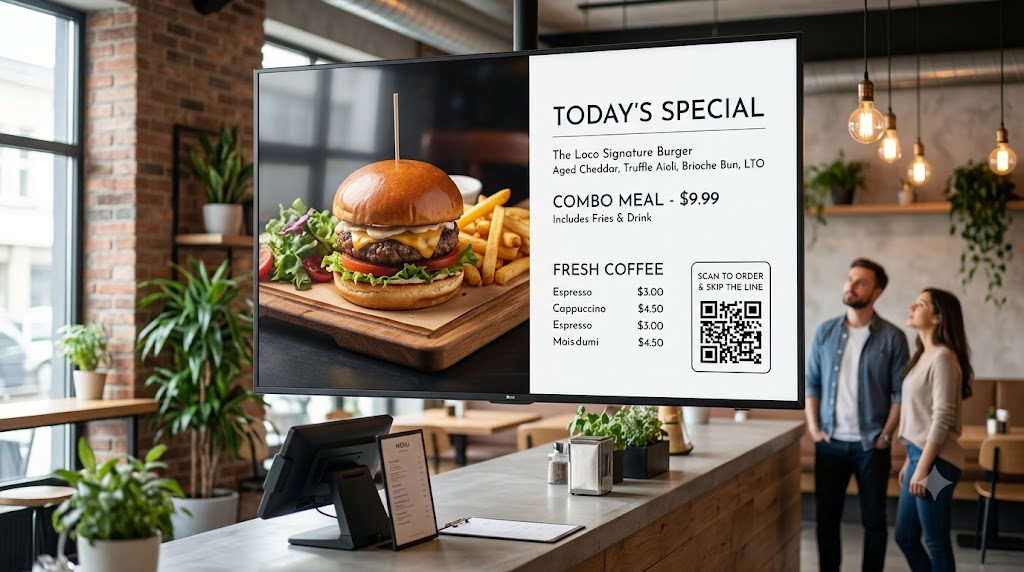
For restaurant owners, food truck operators, and café managers, digital menu boards are essential for driving sales and displaying daily specials. But relying strictly on cloud-only signage software puts your business at risk of black screens during internet outages.
With Loco Digital Signage, restaurant displays get the best of both worlds: remote cloud updates when you want to change prices from home, plus 100% local offline caching and LAN transfer so your digital menus run continuously 24/7 without internet.
Setting Up Restaurant Menu Boards?
Install Loco on your Smart TV and phone. Pair via QR code and launch your digital menu in 3 minutes.
Start Free Trial — No Credit Card NeededWhy Offline Capability is Critical for Digital Menu Boards
- Zero Black Screen Risks: If your restaurant's WiFi fails during lunch rush, your digital menus keep playing smoothly.
- Local WiFi Transfer Mode: Update prices over your local router (same WiFi) without sending media outside your store.
- Split Screen Menu & Order Queue Tokens: Show menu pricing on the left and live customer order token numbers on the right.
- Hardware Versatility: Works natively on Apple TV, Android TV, Fire TV, and Google TV.
- Flat Per-Screen Pricing: Predictable billing per active TV display screen. View our pricing plans.
How to Set Up Offline Digital Menu Boards in 3 Steps
Install Apps
Search for Loco Digital Signage Player on your restaurant TVs, and download Loco Digital Signage on your phone.
Pair Devices
Open Loco on your TV. Scan the on-screen QR Code with your phone camera or enter the 6-digit Connection Code to link instantly. View our pairing guide.
Publish Live
Upload your menu images, promo videos, or order tokens in the app and tap publish! Your screens update automatically in real-time.
Explore Restaurant Signage Guides
Try Loco Digital Signage Free Today!
Set up your restaurant TV menu screens in minutes. Experience Loco Digital Signage completely free.
Free trial available • No credit card required • Instant QR pairing